OpenClaw Cost Optimization: How to Cut Your Monthly Bill significantly
Cut your OpenClaw costs significantly with model routing, context management, prompt caching, and QMD — step-by-step config examples included.
OpenClaw is one of the hottest open-source AI agent projects of 2026. It lives on your server and does real work for you — browses the web, manages files, sends messages, checks your calendar, and more.
But there’s a problem most people don’t talk about: it can get expensive fast.
Many users run OpenClaw with default settings and end up spending $100 to $600+ per month on API tokens alone. The worst part? Most of that money is wasted on tasks that don’t need expensive models.
This guide will show you exactly how to significantly cut your OpenClaw costs. We’ll go step by step, from quick 5-minute fixes to advanced optimizations. By the end, you should be able to run a fully working OpenClaw agent for under $20-60 per month.
I run my OpenClaw on xCloud — a managed hosting platform that handles all the server stuff for you. Most of the tips in this guide work no matter where you host, but I’ll point out xCloud-specific things where they help.
Let’s dive in.
Understanding Where Your Money Goes
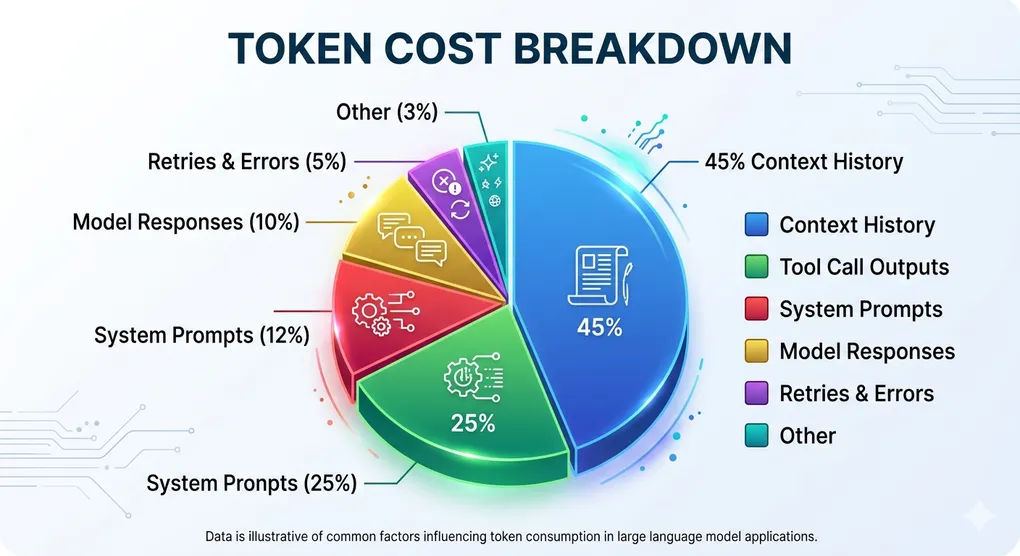
Before you can save money, you need to know where it’s going. Here’s how a typical OpenClaw instance spends its tokens:
| Category | % of Total Cost |
|---|---|
| Conversation history (context) | 40-50% |
| Tool call outputs | 20-30% |
| System prompts | 10-15% |
| Model responses (output tokens) | 8-12% |
| Retries and errors | 3-5% |
The biggest surprise for most people? Context history eats almost half your budget. Every time you send a new message, OpenClaw sends the entire conversation history back to the AI model. So by your 10th message, all 9 previous messages get sent again. This adds up fast.
The second surprise: output tokens cost 3 to 5 times more than input tokens across all providers. A chatty model that writes 2,000 words when 400 would do is burning your money.
If you use OpenRouter for your API keys, you can see a similar breakdown in your OpenRouter Activity dashboard. For direct API keys, check the Anthropic Console or OpenAI Dashboard.
Understanding this breakdown is key. The strategies below target each of these cost areas directly.
Quick Wins — Save 50% in 5 Minutes
These three changes take less than 5 minutes each. Together, they can cut your bill in half immediately.
1. Switch Your Default Model
This is the single fastest way to save money. Most people set up OpenClaw with a powerful (and expensive) model like Claude Opus or GPT-4o as their default. But here’s the truth: 80-90% of your daily tasks don’t need a premium model.
Summarizing a document? Formatting text? Looking up a file? Setting a reminder? A cheaper model handles all of these just fine.
Here’s a quick price comparison:
| Model | Input Cost (per 1M tokens) | Best For |
|---|---|---|
| Claude Opus 4.6 | ~$15 | Complex reasoning only |
| Claude Sonnet 4.6 | ~$3 | Good balance of quality and cost |
| Claude Haiku 4.5 | ~$1 | Everyday tasks, 5x cheaper than Opus |
| GPT-4o-mini | ~$0.15 | Simple tasks, 10-20x cheaper than GPT-4o |
| Gemini 2.0 Flash | ~$0.10 | Budget tasks |
What to do: Change your default model to Claude Haiku or GPT-4o-mini. Use Sonnet or Opus only when you actually need deep reasoning.
In your OpenClaw config (~/.openclaw/openclaw.json):
{
  "agents": {
    "defaults": {
      "model": "anthropic/claude-haiku-4-5-20251001"
    }
  }
}
2. Set Your Context Budget
Every request to the AI model includes your conversation history, system prompt, tool definitions, and the model’s response — all counted as tokens. OpenClaw’s default context budget is 200,000 tokens, which is generous (and expensive). For everyday tasks, you don’t need anywhere near that.
Set a lower context budget in your config:
{
  "agents": {
    "defaults": {
      "contextTokens": 50000
    }
  }
}
This caps how many tokens get sent per request across all sessions using that agent. For most tasks, 50,000 is more than enough. You can raise it on-demand for longer tasks.
Note: For standard Anthropic or OpenAI models, per-request output token limits are configured in your API provider’s dashboard — not in openclaw.json.
3. Enable Prompt Caching
Every time OpenClaw sends a request, it includes your system prompt, tool definitions, and other static content. If this content is the same across requests (and it usually is), you’re paying full price for the same text over and over.
Prompt caching stores this repeated content so you only pay a fraction of the price on subsequent calls:
- Claude: Cached tokens cost only 10% of the normal price (90% discount)
- OpenAI: Cached tokens cost 50% of the normal price
For Claude, caching is automatic when your prompt exceeds 1,024 tokens. For the best results, make sure your static content (system prompt, tool definitions) comes at the beginning of each request so the cache can kick in.
If you’re using a proxy service like OpenRouter, make sure you’re using the Anthropic native format (anthropic-messages API) rather than the OpenAI compatibility mode. The OpenAI compatibility mode often can’t access Claude’s prompt caching, which means you miss out on 90% savings on system prompts.
To configure this in OpenClaw, add OpenRouter as a custom provider with "api": "anthropic-messages":
{
  "models": {
    "providers": {
      "openrouter": {
        "baseUrl": "https://openrouter.ai/api/v1",
        "apiKey": "${OPENROUTER_API_KEY}",
        "api": "anthropic-messages",
        "models": [
          { "id": "anthropic/claude-haiku-4-5-20251001" },
          { "id": "anthropic/claude-sonnet-4-6" }
        ]
      }
    }
  }
}
The "api": "anthropic-messages" line is what unlocks prompt caching. Without it, OpenClaw defaults to the OpenAI-compatible format and caching is silently skipped.
These three changes alone can drop your bill by 50% or more. But we’re just getting started.
Model Routing — The Biggest Money Saver
Model routing is the idea of using different models for different agents or channels instead of one expensive model doing everything. You set up a cheap model as your default, then assign more capable models only where you actually need them:
- Default agent (cheap model) — handles general conversations, reminders, lookups
- Specialized agents (mid-tier or premium) — dedicated agents for coding, analysis, or any task that warrants a stronger model
You route traffic between agents using bindings (based on channel, user, or guild). The fallback chain handles provider failures automatically.
Setting Up a Fallback Chain
OpenClaw supports an ordered model fallback list. If your primary model hits a rate limit, overload error, or network failure, it automatically retries with the next model in the list:
{
  "agents": {
    "defaults": {
      "model": {
        "primary": "anthropic/claude-haiku-4-5-20251001",
        "fallbacks": [
          "anthropic/claude-sonnet-4-6",
          "anthropic/claude-opus-4-6"
        ]
      }
    }
  }
}
This means: run Haiku by default, fall back to Sonnet if Haiku is unavailable, fall back to Opus if Sonnet is also unavailable. This keeps your agent running during provider outages without manual intervention — and keeps costs low since Haiku handles the vast majority of requests.
Assign Cheap Models to Background Work
Your cron jobs, heartbeat checks, and background agents don’t need premium models. A heartbeat check that runs every 30 minutes on Claude Opus can cost $30-100 per month by itself. Switch it to Haiku or Gemini Flash and that drops to under $3.
{
  "agents": {
    "defaults": {
      "heartbeat": {
        "model": "google/gemini-2.0-flash",
        "every": "30m",
        "isolatedSession": true
      }
    }
  }
}
The same goes for sub-agents. Each sub-agent you spawn starts a new session with its own context overhead. If you have a search agent, a file processing agent, and a summarizer — run them all on cheaper models:
| Agent Type | Recommended Model | Why |
|---|---|---|
| Search agent | GPT-4o-mini | Simple lookups don’t need reasoning power |
| File processor | Claude Haiku | Fast, handles formatting well |
| Summarizer | GPT-4o-mini | Summarization is a strength of smaller models |
| Main conversation | Claude Sonnet | Good balance for interactive work |
| Complex coding | Claude Opus (on demand) | Only when you actually need it |
Real-world savings: 60-80% cost reduction versus using a single premium model for everything.
Context Management — Stop Paying for Old Messages
Remember that context history eats 40-50% of your budget? Here’s how to fix that.
The Problem: Context Compounding
OpenClaw sends the full conversation history with every new message. Here’s what that looks like in practice:
- Message 1: Sends 1x your system prompt + 1 message
- Message 5: Sends 1x system prompt + 5 messages
- Message 20: Sends 1x system prompt + 20 messages
- Message 40: Sends 1x system prompt + 40 messages (your early messages have been sent 40 times!)
This is why long conversations get exponentially more expensive.
Fix 1: Set Context Token Limits
Put a ceiling on how much context gets sent with each request:
{
  "agents": {
    "defaults": {
      "contextTokens": 50000,
      "compaction": {
        "mode": "safeguard"
      }
    }
  }
}
contextTokens sets the hard cap on how much context gets sent per request. compaction.mode: "safeguard" enables chunked summarization — when context approaches the limit, older parts are automatically summarized rather than dropped.
For most use cases, 50,000–100,000 tokens is the sweet spot. Beyond that, costs go up fast and the model’s response quality can actually get worse (too much context can confuse it).
Fix 2: Keep Workspace Files Lean
Your MEMORY.md and daily notes (memory/YYYY-MM-DD.md) get loaded at the start of every session. If they’re bloated, you’re paying for that bloat on every message.
Target: Keep all workspace files combined under 3,000 tokens. This includes your SOUL.md — keep it under 1,500 words as recommended in the guide.
Tips:
- Remove old or outdated entries from MEMORY.md
- Keep agent descriptions short and focused
- Don’t dump entire project docs into workspace files — reference them instead
Fix 3: Enable QMD (Quick Memory Database)
QMD is a newer feature that builds a local search index of your conversations and documents. Instead of sending everything to the model, it searches for the most relevant pieces and sends only those.
You enable QMD by adding a top-level memory key to your openclaw.json — it sits at the root, not inside agents:
{
  "memory": {
    "backend": "qmd",
    "qmd": {
      "sessions": {
        "enabled": true
      }
    }
  }
}
This applies globally to all agents, whether you run one or many. The memory block is a single top-level setting — there’s no per-agent override for the backend.
QMD stores its index locally at ~/.openclaw/agents/<agentId>/qmd/ — no cloud storage, no extra API calls for search. It reindexes automatically whenever your memory files change.
By default, QMD uses your configured API provider to generate embeddings, which has a small cost. To eliminate that cost entirely, switch to a local embedding model:
export QMD_EMBED_MODEL="hf:Qwen/Qwen3-Embedding-0.6B-GGUF/Qwen3-Embedding-0.6B-Q8_0.gguf"Add this to your shell profile (.zshrc, .bashrc) so it’s set every time OpenClaw starts.
The hf: prefix means it pulls from HuggingFace. You don’t need to download it manually — QMD downloads it automatically the first time it runs a search. Expect a ~2 GB download on that first run.
QMD can reduce your context token usage by 60-97% depending on how much history you have.
Fix 4: Use Isolated Sessions for Cron Jobs
Every cron job should run in an isolated session. This starts a clean session for each run and closes it when done. Without this, your cron jobs accumulate context over time, getting more expensive with each run.
When creating a cron job via the CLI, pass the --session isolated flag:
openclaw cron add --name "daily-summary" --every "24h" --session isolated --message "Summarize today's activity."For the heartbeat specifically, the equivalent in your JSON config is isolatedSession: true — see the heartbeat config in the section above.
Use the Batch API for Non-Urgent Work
If you have tasks that don’t need an instant response, the Batch API gives you a 50% discount.
You submit your requests in a batch, and the API processes them within 24 hours. This is perfect for:
- Content generation — writing blog drafts, emails, social posts
- Data processing — classifying documents, extracting data
- Bulk summarization — processing many files at once
- Evaluation pipelines — testing prompt quality across many inputs
The trade-off is simple: you wait longer, you pay half. For anything that’s not a live conversation, this is free money.
Most API providers support batching:
- OpenAI Batch API: 50% discount on both input and output tokens
- Anthropic: Available through their Message Batches API
Disable Expensive Features You Don’t Need
Some OpenClaw features burn tokens without you realizing. Here’s what to check:
Thinking/Reasoning Mode
Extended thinking mode makes the model “think out loud” before answering. This is great for complex problems, but those thinking tokens cost 3 to 5 times more than normal tokens.
If your OpenClaw bill is surprisingly high, check your reasoning mode usage first. Disable it for simple tasks:
{
  "agents": {
    "defaults": {
      "thinkingDefault": "off"
    }
  }
}
Valid values are "off", "minimal", "low", "medium", "high". Set it to "off" globally, then rely on per-message overrides when you actually need deep reasoning.
Heartbeat Frequency
OpenClaw’s heartbeat is a background check that runs by default every 30 minutes. Each check consumes 8,000-15,000 input tokens. On a premium model, that’s $30-100/month just for heartbeats.
Fix: Either disable heartbeats if you don’t need them, reduce the frequency, or (best option) route them through a cheap model like Gemini Flash.
Browser Automation
A single web scraping session can cost $0.10 to $0.50 in tokens. If your agent is browsing the web frequently, consider:
- Using direct API calls instead of browser automation where possible
- Caching web results so the same page isn’t fetched twice
- Setting result limits (
tools.web.search.maxResults: 3in your config)
Unnecessary Sub-Agents
Each sub-agent spawns a new session with its own context overhead. Before spawning a sub-agent, ask: “Could the main agent handle this inline?” If the task is simple, skip the sub-agent.
Monitor Your Spending
You can’t optimize what you don’t measure. Here’s how to keep track of your costs:
Set Budget Caps
Every API provider lets you set spending limits. Do this on day one. A runaway loop in development can generate thousands of requests before you notice.
- Anthropic Console (console.anthropic.com): Set monthly spend caps under Usage
- OpenRouter (openrouter.ai): Set limits under Activity
- OpenAI Dashboard: Configure usage limits per API key
Set Alert Thresholds
Don’t wait until you hit your limit. Set alerts at 50%, 75%, and 90% of your budget. This is done on the API provider side — not in openclaw.json:
- Anthropic Console → Usage → Spend limits → Add alert
- OpenRouter → Activity → Set budget limit + notification threshold
- OpenAI Dashboard → Billing → Usage limits → Set notification threshold
Once you hit your limit, OpenClaw will start returning errors. So set your alert well below the cap — at 70-80% — so you have time to react.
Track What Matters
Key metrics to review monthly:
- Tokens per conversation — Are conversations getting longer over time?
- Cost per request — Which tasks are the most expensive?
- Model distribution — What percentage of requests go to each model?
- Cache hit rate — Is caching actually working?
Tools like Helicone (one-line integration) or LiteLLM (self-hosted proxy) can give you detailed dashboards for all of these.
Real Cost Examples
Here’s what real setups look like after optimization:
Budget Setup: $20-30/month
- Default model: Claude Haiku or GPT-4o-mini
- Complex tasks: Claude Sonnet (on demand only)
- Cron jobs: Gemini Flash
- Context limit: 50,000 tokens
- QMD: Enabled
- Best for: Personal assistant, light daily use
Balanced Setup: $50-80/month
- Default model: Claude Sonnet
- Light tasks: Claude Haiku
- Background: Gemini Flash
- Sub-agents: GPT-4o-mini
- Context limit: 100,000 tokens
- Best for: Active daily use, coding assistance, content creation
Power User: $100-150/month
- Default model: Claude Sonnet
- Complex work: Claude Opus (when needed)
- Multiple specialized sub-agents
- Browser automation enabled
- Best for: Teams, heavy automation, multi-agent workflows
Before vs After
| Before Optimization | After Optimization | |
|---|---|---|
| Monthly cost | $200-600 | $20-60 |
| Default model | Opus/GPT-4 | Haiku/GPT-4o-mini |
| Context management | None | QMD + compaction |
| Heartbeat model | Same as default | Gemini Flash |
| Budget alerts | None | Set at 80% |
Server-Side Optimization
Your server setup also affects costs. Here’s how to optimize the hardware side.
Right-Size Your Server
Don’t over-provision. Most OpenClaw instances are memory-limited, not CPU-limited:
| Use Case | Recommended Specs | Monthly Cost |
|---|---|---|
| Personal (1-2 channels) | 1 vCPU, 2 GB RAM | ~$5-10 |
| Small team (3-5 channels) | 2 vCPU, 4 GB RAM | ~$15-25 |
| Production (10+ channels) | 4 vCPU, 8 GB RAM | ~$30-50 |
Unload Unused Skills
Each skill adds to your agent’s memory usage and context window. Most users find that 8-12 well-chosen skills is the sweet spot. If you have 30+ skills loaded but only use 10, remove the rest.
Set Up Log Rotation
OpenClaw generates logs that can fill up your disk. Set up automatic rotation:
- Rotate daily
- Compress old logs
- Keep only 7 days of logs
Use a LiteLLM Proxy (Advanced)
For power users, running a LiteLLM proxy in front of your API providers gives you:
- Response caching: 20-50% cost reduction on repeated queries
- Automatic fallback: If one provider is down, it switches to another
- Unified dashboard: Track costs across all providers in one place
- Rate limiting: Prevents accidental cost spikes from retry loops
Why xCloud for OpenClaw Hosting
I host my OpenClaw on xCloud, and here’s why it works well for cost optimization:
- One-click setup in 5 minutes — No Docker, no terminal commands, no DevOps. You sign up, pick a plan, and your OpenClaw is running.
- Managed infrastructure — xCloud handles server security, SSL certificates, automatic backups, firewall rules, and updates. You focus on using your agent, not maintaining it.
- BYOK (Bring Your Own Key) — You use your own API keys from Anthropic, OpenAI, or any provider. This means you have full control over your API spending and can apply all the optimization tips in this guide directly.
- Starting at $24/month — The hosting cost is predictable and separate from your API costs. No surprise charges for bandwidth or storage.
- Right-sized servers — xCloud gives you a dedicated, isolated environment. You’re not sharing resources with other users, which means consistent performance.
The combination of cheap managed hosting ($24/month) plus the optimization tips above (API costs under $20-60/month) means you can run a fully capable AI agent for under $50-85/month total.
Quick Optimization Checklist
Here’s everything from this guide in one checklist. Start from the top and work your way down:
- Switch default model to Claude Haiku or GPT-4o-mini
- Set contextTokens to 50,000 (default is 200,000)
- Enable prompt caching (use Anthropic native format if using a proxy)
- Set up model routing — cheap default, mid-tier fallback, premium only when needed
- Assign cheap models to cron jobs, heartbeats, and sub-agents
- Set context token limit to 50,000-100,000
- Enable compaction (
compaction.mode: "safeguard") for long conversations - Keep workspace files under 3,000 tokens total
- Enable QMD for smart context retrieval
- Use isolated sessions for all cron jobs
- Disable thinking mode for non-complex tasks
- Reduce heartbeat frequency or route through cheap model
- Set monthly budget cap and alert at 80%
- Review spending monthly — check model distribution and cost per request
- Right-size your server — don’t over-provision
Most people see the biggest drop from just the first 5 items. You don’t have to do everything at once. Start with the quick wins and add more as you go.
Ready to get started? If you don’t have an OpenClaw server yet, xCloud’s managed hosting gets you up and running in 5 minutes — no server management required. Pair it with the tips above and you’ll have a powerful AI agent that doesn’t break the bank.
💡 Pro Tips From the Trenches
These are things I discovered after weeks of running OpenClaw in production — not in any docs, just from tinkering.
Pro Tip #1 — Use openrouter:free for Heartbeat (Literally $0)
OpenRouter has a :free suffix on many models that gives you access to genuinely free-tier API calls. This is perfect for your heartbeat, which runs in the background every 30 minutes and doesn’t need any reasoning power.
Set your heartbeat to a free OpenRouter model and you pay zero for it — every single day, indefinitely:
{
  "agents": {
    "defaults": {
      "heartbeat": {
        "model": "openrouter/google/gemini-2.0-flash:free",
        "every": "30m",
        "isolatedSession": true
      }
    }
  }
}
The :free models on OpenRouter have rate limits, but for a simple heartbeat ping, they’re more than sufficient. This alone can save you $10-30/month depending on your current setup.
Good free models to try for heartbeat:
google/gemini-2.0-flash:free,meta-llama/llama-3.1-8b-instruct:free,mistralai/mistral-7b-instruct:free